A compact strip of live window thumbnails, one-click project workspaces and a snap wheel you drive with fn and the mouse. Built natively for macOS by AppAlbania.
Version 1.3.0 · macOS 14 Sonoma or later · Apple silicon & Intel · Free & open source · Notarized by Apple
fn
Everything in one tiny app
Less hunting for windows. More doing.
EasyMAC replaces Stage Manager's bulky strip with something compact and fast, and adds the tools power users usually need three apps for.
Live window strip
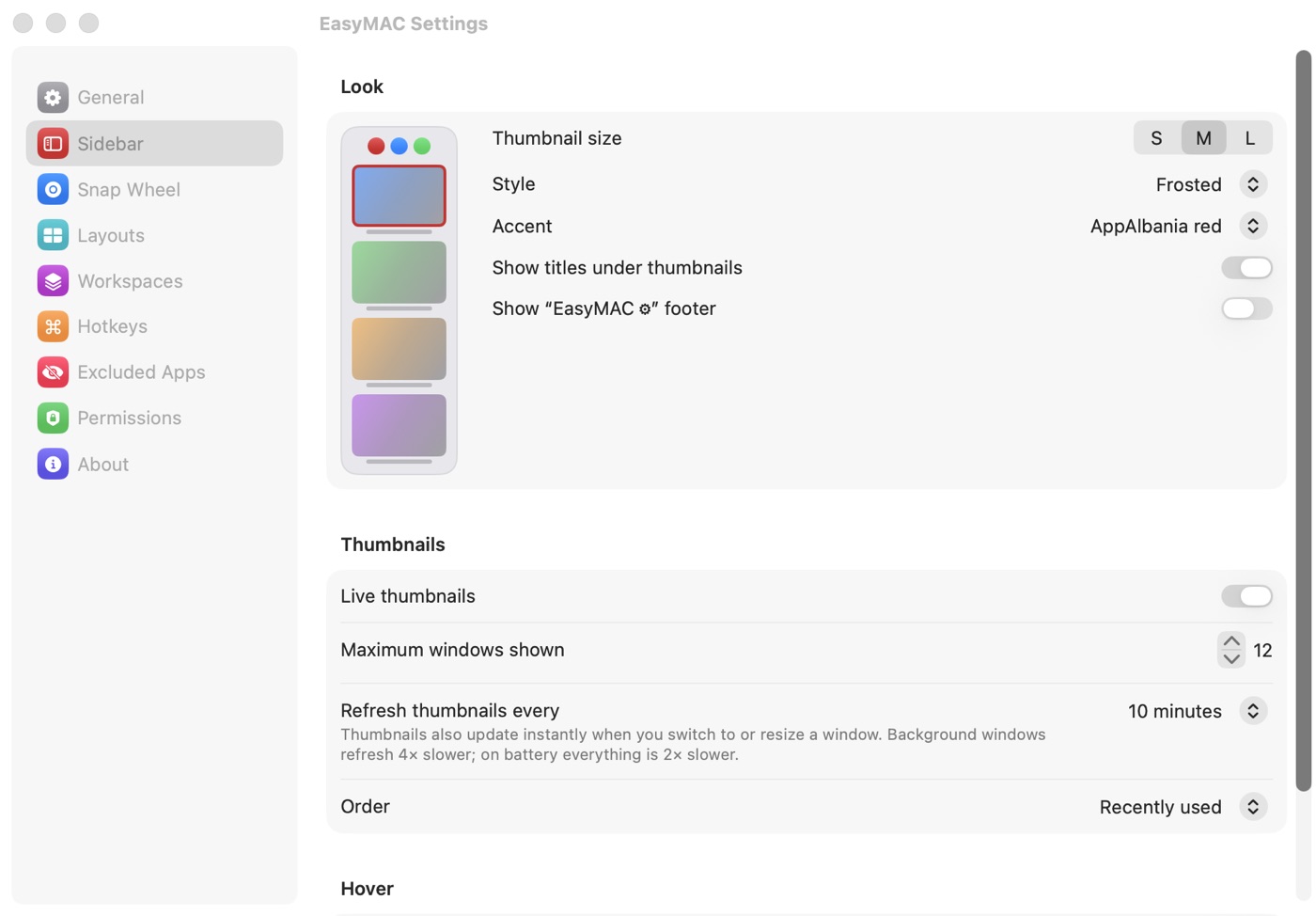
Small live thumbnails of every open window on the screen edge. Click to focus the exact window, even in Chrome or VS Code with dozens open.
Snap wheel
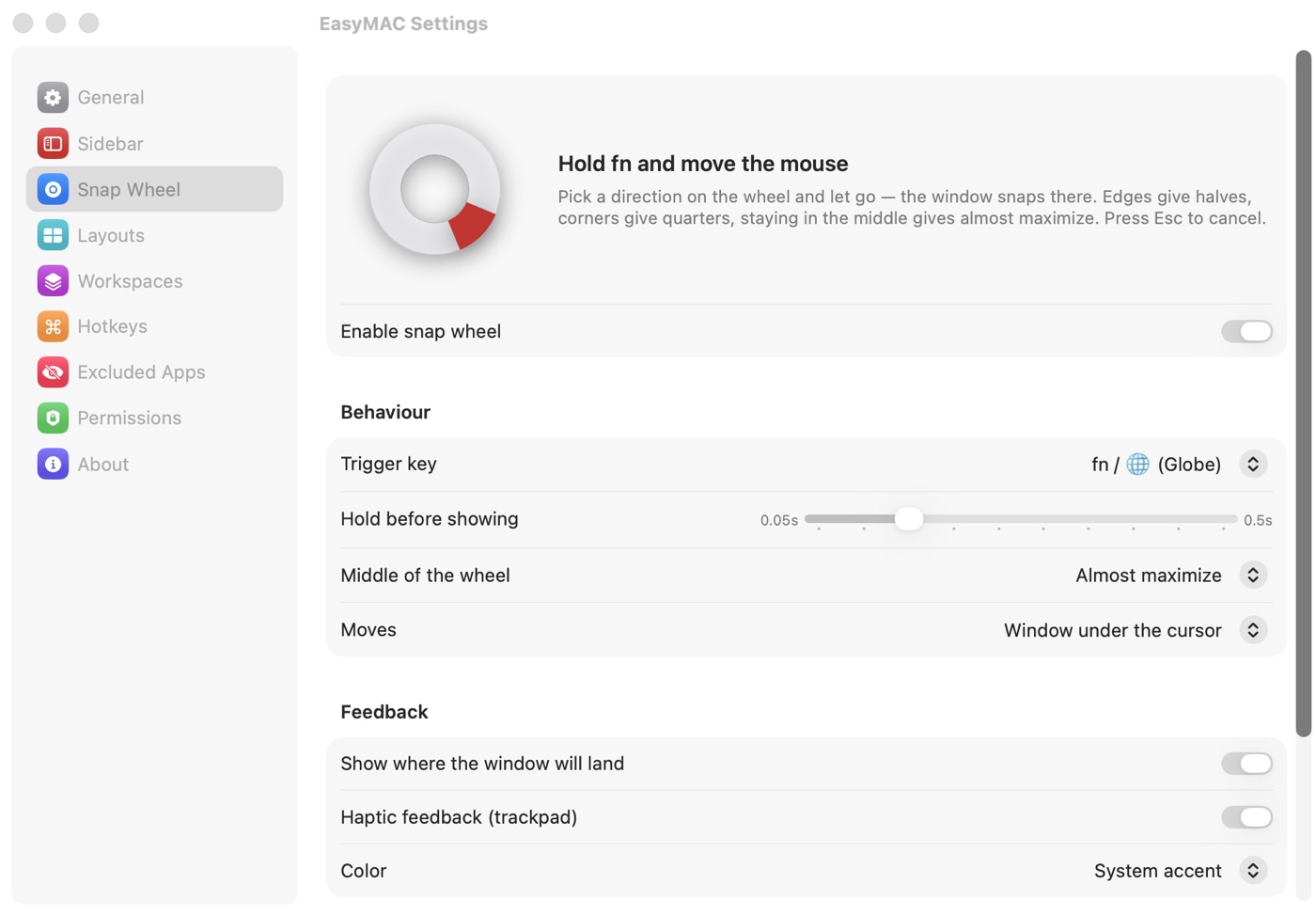
Hold fn, nudge the mouse toward a side or corner, let go. Halves, quarters or maximize, with a preview of where the window lands.
Project workspaces
Save the apps and window positions you use for a project. One click or ⌥1 brings the whole layout back, opening apps if needed.
Tiling layouts
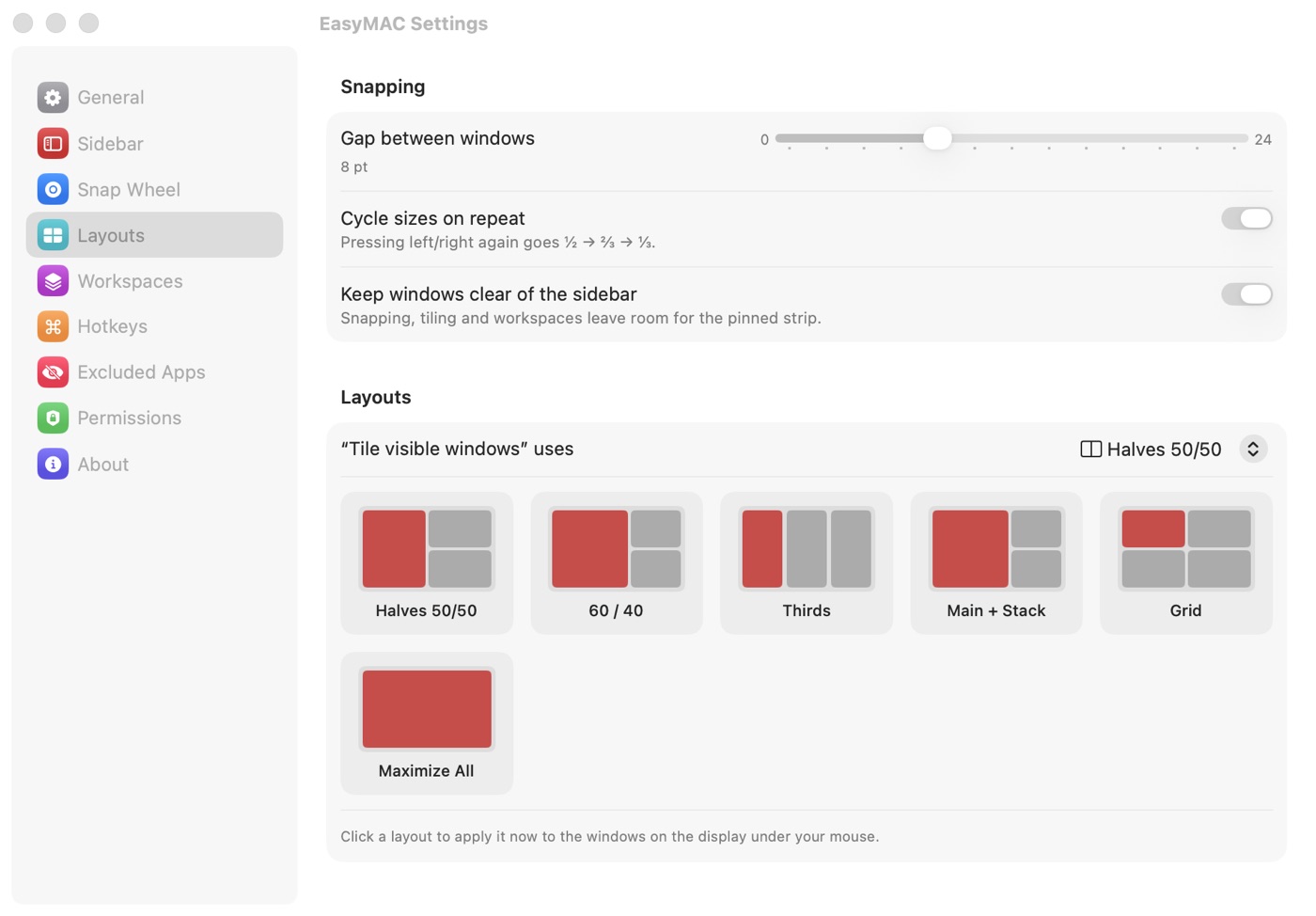
50/50, 60/40, thirds, main + stack and grid — for all visible windows at once. Windows always leave room for the strip.
Keyboard first
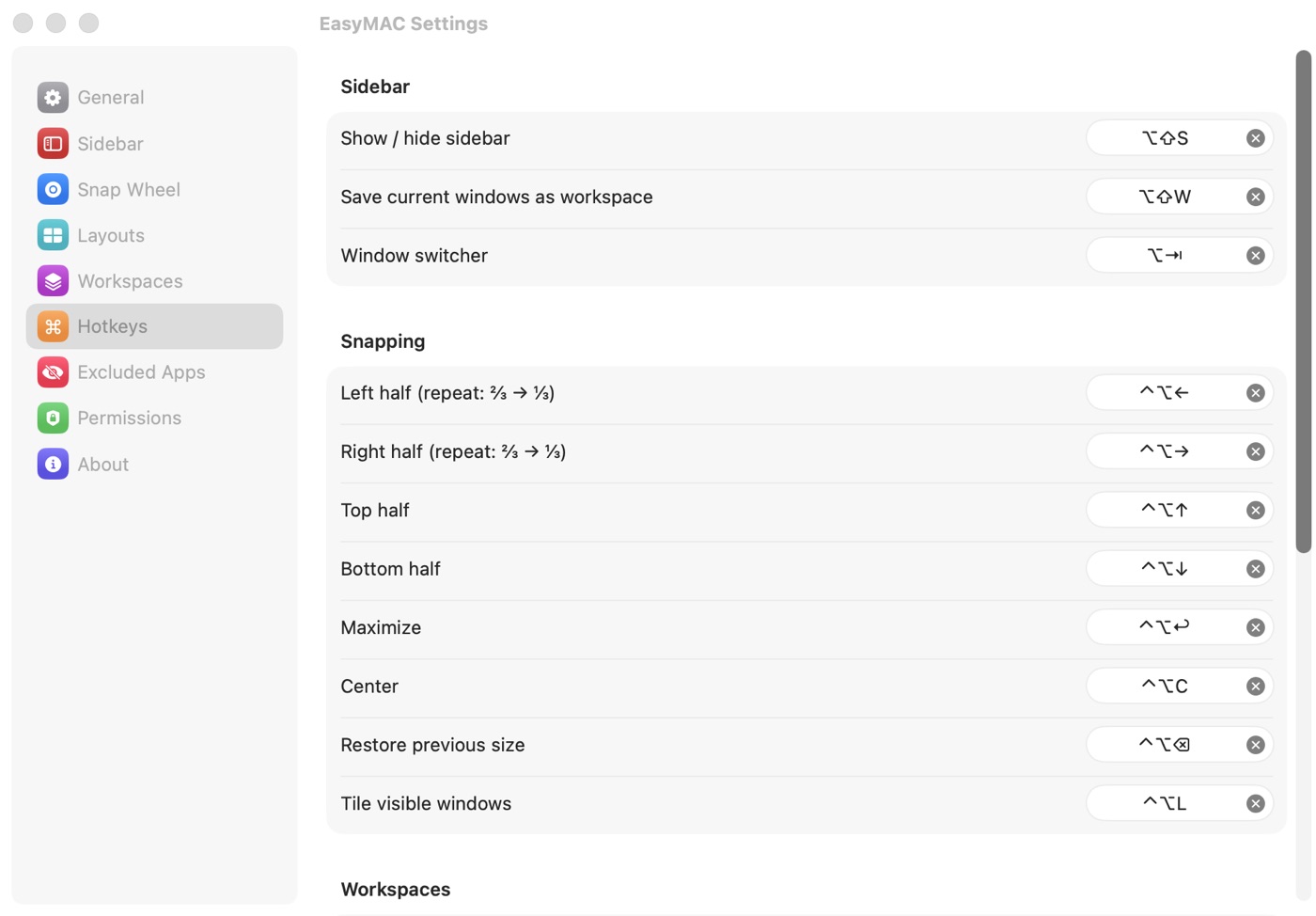
Snap with ⌃⌥ + arrows (repeat for ⅔ and ⅓), cycle windows with ⌥Tab, toggle the strip with ⌥⇧S. Every shortcut is yours to change.
Files & Tray
Downloads, Desktop and a Tray one click away. Drag files straight into Chrome or WhatsApp, Space to preview, float a list on top of every app.
Clipboard history
Press ⌥⇧V for a bar of everything you copied — text, links, images, files. Click to paste. Password managers are skipped.
Notch & Keep Awake
Volume and brightness live in the notch — brightness keys also work on external monitors. Keep your Mac awake for a while or with the lid closed — a small ring by the notch shows the time left.
Light & native
Pure Swift, Liquid Glass on macOS 26, starts at login, ~1–3% CPU while visible and nothing while hidden. Updates install themselves.
Menu bar & notch
Little tools, always one click away.
Each lives as a small icon in the menu bar ( ), in the strip, or in the notch — turn every one on or off in Settings.
Clipboard history
Press ⌥⇧V or click : a bar with everything you copied — text, links, images, files — with the app it came from. Click a card to paste it, search, scroll with the wheel. Keep it while EasyMAC runs or up to 30 days. Password managers are skipped.
Downloadsinvoice.pdfphotosreport.docx
Files & Tray
Downloads, Desktop or any folder — open them in place, step into sub-folders, select several files and drag them straight into Chrome, WhatsApp or Mail. Space shows a Quick Look preview. Drop files on the Tray — or just drag them onto the notch — to keep them handy.
Tray Downloads Desktop
Folders on top of everything
Click the icon in the menu bar for your Tray and folders right under it, or press ⤢ to float a list as a small glass window over every app — it stays put until you close it and remembers where you left it.
Active, 1:04:08 left Lid closedLid can be closed, Mac stays awake DisplayScreen stays on
Keep Awake timer
keeps your Mac awake for 10 minutes to 5 hours or indefinitely: keep the screen on, let only the screen sleep, or keep working with the lid closed. A small ring next to the notch shows the time left; zzz means your Mac may sleep.
Volume 31
Volume & brightness in the notch
The volume, mute and brightness keys show a slim bar right in the notch instead of the big system popup. New: with the pointer on an external monitor, the brightness keys change that screen.
Standardwheel up scrolls up Trackpad stays natural
Mouse with its own direction
macOS ties mouse and trackpad scrolling together. EasyMAC lets your mouse wheel scroll the classic way while the trackpad keeps natural scrolling.
Send via AirDrop
Tray
Presentation.pdf
Drop on the notchNEW
Drag any file up to the notch and it opens a drop shelf: let go on the left to send it with AirDrop to your iPhone or another Mac, or on the right to keep it in your Tray. Click the notch any time to open the Tray — it stays on top of every app until you close it.
Snap wheel
Hold fn. Flick. Done.
No more dragging windows to pixel-perfect edges. A ring appears right where your cursor is.
1
Hold fn (or right ⌥ / ⌘ / ⌃ — your choice). A quick tap does nothing, so fn shortcuts keep working.
2
Move the mouse toward an edge for a half, a corner for a quarter, or stay in the middle to maximize.
3
Let go. The window snaps into the frosted preview. Press Esc to cancel.
Workspaces
Your project, back in one click.
Working on RentalX in the morning and client sites in the afternoon? Save each setup once.
1
Arrange the apps you use for a project and snap them how you like.
2
Click + on the strip (or ⌥⇧W). A colored chip appears.
3
Click the chip or press ⌥1…⌥9. Closed apps open, every window returns to its place.
Make it yours
Settings that stay out of the way.
Live previews or app icons, thumbnail size, style, refresh rate, what the strip shows, edge, display, auto-hide, excluded apps, every shortcut. Open EasyMAC again any time to tweak it.
Sidebar: size, Liquid Glass / Frosted / Dark, titles, refresh rateHotkeys: every shortcut can be re-recorded
Shortcuts
Defaults worth memorising.
Snap wheel
hold fn + move mouse
Show / hide the strip
⌥⇧S
Restore workspace 1–9
⌥1 … ⌥9
Save current windows as a workspace
⌥⇧W
Window switcher (release ⌥ to focus)
⌥Tab
Snap left / right (repeat: ⅔ → ⅓)
⌃⌥←→
Snap top / bottom
⌃⌥↑↓
Maximize · Center · Restore size
⌃⌥↩ · C · ⌫
Tile all visible windows
⌃⌥L
Clipboard history
⌥⇧V
Release notes
What's new
Every version, newest first. Installed copies update themselves — or download any version below.
Paste into folders — copy files anywhere (Finder, Mail, EasyMAC) and press ⌘V in a folder list to paste them there, or ⌘⌥V to move them. Right-click a file or empty space for Paste. Files with the same name are kept side by side ("doc 2.pdf"), never overwritten. ⌘C copies the selected files, and pasting into the Tray adds them to it.
Strip tab on every screen — when the strip is tucked away, its arrow tab now shows on all your displays, and clicking it opens the strip on that screen.
No more freezes when copying on your iPhone — text copied on an iPhone or iPad (Universal Clipboard) is now read in the background. If the transfer from the phone is slow or fails, EasyMAC keeps working instead of freezing for about 10 seconds.
Menu bar icons stay visible — on MacBooks with a notch, macOS hides icons that don't fit when an app with a long menu is in front. The Clipboard, Keep Awake and Files icons now sit right next to the clock, so they are the last to be hidden. You can still ⌘-drag them anywhere.
Folders open on the desktop you're on — opening a folder from the menu bar or the strip no longer jumps to Desktop 1. "Open in Finder" opens a new Finder window right where you are (macOS asks once to let EasyMAC control Finder).
Every EasyMAC panel now checks it is on your current desktop each time it opens.
The strip stays on every desktop — after unplugging a monitor or waking the Mac, macOS could stick the strip to one desktop so it vanished when you swiped to the next. EasyMAC now puts it back right away.
Brightness for external monitors — with the pointer on an external screen, the brightness keys change that screen, with the bar shown at its top. Monitors with DDC/CI switched on change their real backlight; others are dimmed by EasyMAC (back to normal when it quits).
New option in Settings → General → Notch: “Brightness keys follow the pointer”.
Hide the strip with one click — a small arrow in the strip's corner tucks it away; a slim arrow stays at the screen edge to bring it back (⌥⇧S works too).
Instant desktop switching — swiping between desktops updates the strip as soon as the swipe ends, without a delay and without the strip jumping during the gesture. Thumbnails of other desktops are kept, so they appear immediately.
App icons mode — show windows in the strip as compact app icons instead of live previews (Settings → Sidebar → Windows shown as). Lighter: no screen capture at all.
Choose what the strip shows — turn Workspaces, Tray, Folders, Desktops and the footer on or off. Hiding Tray or Folders from the strip keeps them in the menu bar and the notch.
Brightness never goes dark — the brightness keys stop at 10% by default (adjustable), so the screen can't go black.
Step size for volume & brightness — 1%, 2%, 3%, 5%, 6% or 10% per key press; hold ⌥⇧ for 1% steps.
Drop on the notch — drag files to the notch: left half sends them with AirDrop, right half keeps them in the Tray. Click the notch to open the Tray.
Folders inside lists — double-click a folder to open it in place, ‹ or ⌘↑ to go back.
Tray stays open — the file list stays on top of every app until you close it.
New Settings tabs — Files & Tray, Clipboard and Keep Awake each have their own page, plus one place to choose which menu bar icons you see.
Keep Awake — optional one-time permission so “Lid closed” never asks for your password.
Zero lag — permission checks and Spaces queries moved off the main thread; menus and scrolling stay smooth.
Fixes: mouse wheel direction with smooth-scrolling mice, menu bar icons hiding together, clipboard history kept across updates, private file permissions for saved clipboard images.
Files & Tray — Downloads, Desktop and a Tray in the strip or the menu bar. Drag files straight into Chrome, WhatsApp, Mail. Multi-select, Space for Quick Look, float any list on top of all apps.
Clipboard history — ⌥⇧V or the icon: a bar of everything you copied (text, links, images, files). Kept while EasyMAC runs (even across updates) or up to 30 days.
Notch HUD — volume, brightness and mute shown right in the notch.
Keep Awake — / zzz in the menu bar: 10 min to indefinitely; Display, System only or Lid closed (optional one-time permission, no more password prompts). A small ring next to the notch shows the time left.
Mouse — give your mouse wheel its own direction (Standard / Natural) while the trackpad keeps its own.
Smoother and lighter: input handling on its own thread (no lag), lighter animations.
Options to hide the EasyMAC menu bar icon and the strip footer.
Desktops row — small numbered desktops (Spaces) at the bottom of the strip. Click to switch, double-click to see all windows of that desktop. Turn on in Settings → Sidebar.
Instant desktop switching — one click to enable direct ⌃1…⌃9 jumps.
Fullscreen apps — the strip tucks away over fullscreen apps and slides in at the screen edge.
Lighter on battery — smarter thumbnail refresh (up to every 10 minutes), paused while the display sleeps.
Option to hide the “EasyMAC ” footer.
Fixes: snapping EasyMAC's own window, windows keep clear of the strip on every display, Workspaces settings layout.
Starts at login, updates itself, signed and notarized by Apple.
Get started
Up and running in a minute.
STEP 1
Download
Open the DMG and drag EasyMAC into Applications.
STEP 2
Accessibility
Allow it on first launch — this lets EasyMAC focus, move and resize windows.
STEP 3
Screen Recording
Optional, only for live thumbnails. Skip it (or turn thumbnails off in Settings) and you see app icons — no captures, no extra CPU.
STEP 4
Enjoy
EasyMAC lives in the menu bar, starts at login and updates itself.
Holding fn opens Emoji or Dictation
Set System Settings → Keyboard → “Press key to” → Do Nothing, or press “Set to Do Nothing” in EasyMAC → Settings → Snap Wheel. You can also switch the trigger to right ⌥, ⌘ or ⌃.
Should I turn off Stage Manager?
Yes — EasyMAC replaces it. System Settings → Desktop & Dock → Stage Manager off.
Is my screen content sent anywhere?
No. Thumbnails are captured and shown locally only. EasyMAC has no accounts, no tracking and only contacts appalbania.com to check for updates.